
iPhone Speaker Quiet? How to Clean It Properly and Find the Cause
iPhone speaker quiet? How to clean the speaker and earpiece without damage, check the key settings and tell when there is a fault.
iSmart Repair Hamburg · 28 October 2026
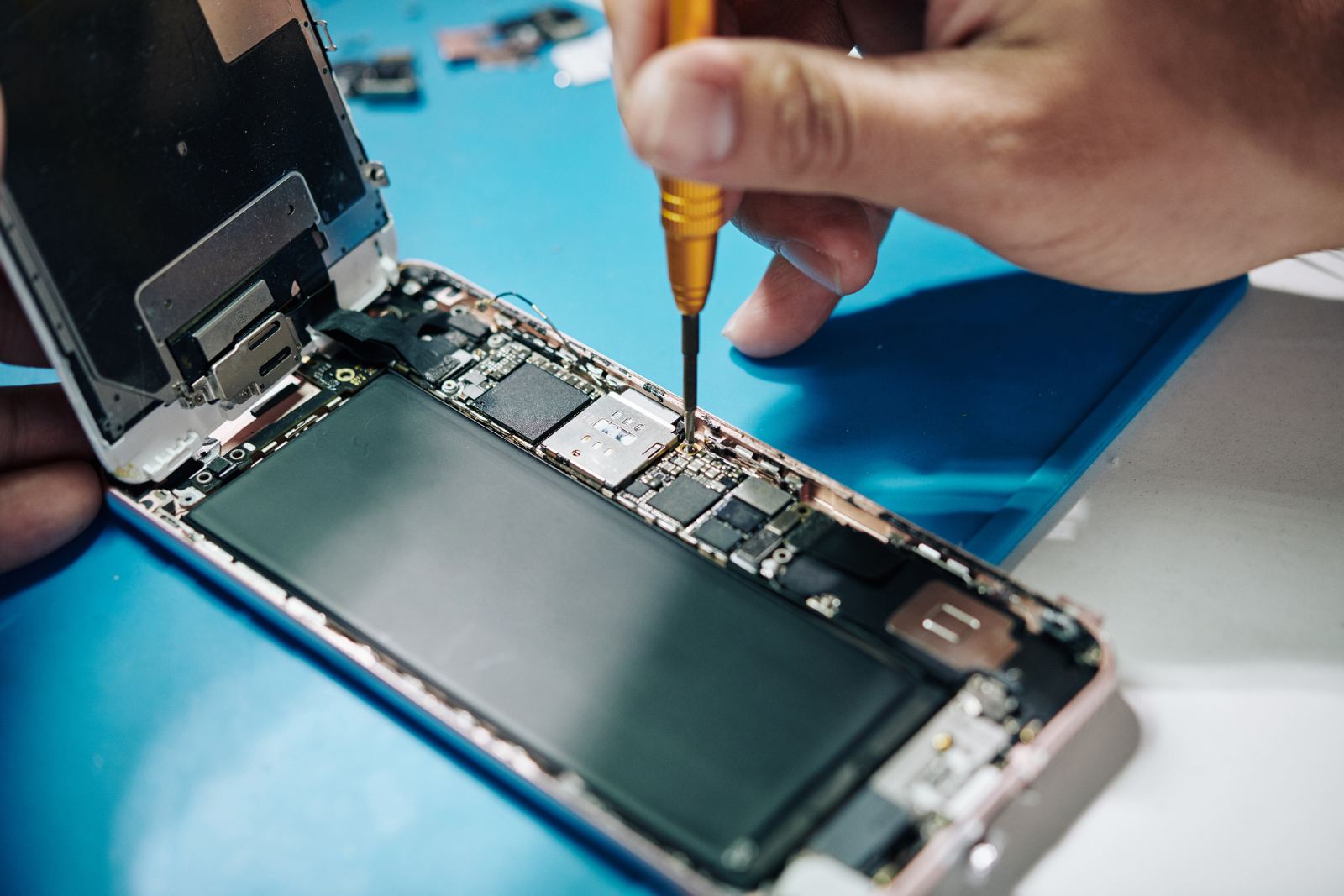
If your iPhone speaker is quiet, the cause in most cases is dirt and lint in the speaker grille, a case covering the openings, a Bluetooth connection or a volume setting. With a soft, dry brush and a look at 4 settings, you can often fix the problem in a few minutes. If the sound is distorted or scratchy afterwards, the speaker itself is faulty.
Suddenly you can barely hear the other person on calls, music sounds muffled, and your ringtone gets lost in your pocket. A quiet iPhone speaker is a common problem that customers bring to our 3 Hamburg stores. The good news: very often the cause is blocked speaker openings or a setting, and nothing is broken. This guide shows you how to clean the speaker properly, which settings to check and when a repair is the most sensible option.
What speakers does an iPhone have?
An iPhone has 2 speakers: the main speaker on the bottom edge next to the charging port and the earpiece at the top of the screen, which you hear through on calls. Since the iPhone 7, the earpiece also works as a second speaker and provides stereo sound for music and videos.
This split matters when you are tracking down the fault. If only calls held to your ear are too quiet, the problem usually lies with the earpiece. If the ringtone, music and speakerphone sound quiet, it usually affects the bottom speaker. If one side sounds noticeably quieter than the other during stereo playback, one of the two openings is often dirty.
The speaker openings are covered by a fine grille and a protective membrane. This grille protects against dust and splashes, but in everyday use it collects lint, skin oil, make-up and pocket dust. Even a thin layer of dirt audibly dampens the sound.
iPhone speaker quiet: the 8 most common causes in 2026
The causes are listed by how often they occur. You can fix the first 6 yourself; the last 2 are jobs for the workshop.
1. Dirty speaker grille
By far the most common cause. Lint from your trouser pocket, dust and skin oil get stuck in the openings. At the earpiece at the top, make-up and skincare products add to this. The result: the sound becomes muffled and quiet, even though the speaker works perfectly from a technical point of view.
2. Case or screen protector covering the openings
Poorly fitting cases or screen protectors without a cut-out for the earpiece partly cover the openings. Test the sound once without the case and without the screen protector.
3. Bluetooth device connected
If your iPhone is still connected to headphones, a speaker or your car, the sound is routed there. In Control Centre, the AirPlay icon shows you where the sound is currently going.
4. Volume set incorrectly
The iPhone distinguishes between the volume for ringtones and alerts and the volume for media and calls. If you only turn up one of them, the other one can catch you out.
5. Silent mode or Focus switched on
Silent mode and Focus modes such as "Do Not Disturb" mute ringtones and alert sounds. Music and videos, on the other hand, keep playing with sound. That is why many people think the speaker is faulty when only the ringtone is muted.
6. Moisture after contact with water
After rain, a drop into water or a shower with your iPhone nearby, moisture can sit behind the grille. The sound is then muffled until everything has dried.
7. Damaged speaker membrane
Sharp objects used for cleaning, strong compressed air or a drop can damage the delicate membrane. The sound is then distorted, scratchy or buzzing, especially at high volume.
8. Faulty speaker module or contact problem
After a drop, or through corrosion after contact with liquid, the speaker module can fail or the contact with the logic board can weaken. The sound then cuts out, crackles or is missing completely.
How do I clean my iPhone speaker properly?
The safest way to clean your iPhone speaker is with a new, soft, dry toothbrush or a fine paintbrush, gently brushing the lint out of the grille. You can loosen stubborn dust with a little masking tape or adhesive putty. Sharp objects, liquids and compressed air are off limits.
For the earpiece, Apple recommends a small, clean, dry brush with soft bristles. Here is how to do it step by step:
- Switch off your iPhone and remove the case. This gives you access to all the openings.
- Prepare a soft brush. A new toothbrush with soft bristles or a fine paintbrush, both completely dry.
- Brush gently. Use light pressure and small movements across the grille; on the bottom speaker, work from the inside outwards so the dirt falls out instead of slipping further in.
- Use masking tape or adhesive putty. Wrap a piece of masking tape around your finger, sticky side out, and dab it lightly on the grille several times. Adhesive putty works the same way. Make sure no residue stays in the grille.
- Clean the earpiece carefully. The grille at the top is especially fine. Only brush and dab, without applying pressure.
- Test the sound. Switch your iPhone on, play a voice memo or music and compare the sound with how it was before.
What to avoid when cleaning
- No needles, toothpicks or paper clips. They can easily pierce the membrane behind the grille.
- No liquids. Even alcohol or cleaning spray gets through the grille into the device.
- No compressed air at close range. The strong blast of air can damage the membrane and push dirt further in.
- No cotton buds with loose fibres. The cotton fibres get caught in the grille.
If the speaker still sounds quiet after cleaning, the dirt often sits deeper behind the grille. In the workshop, we open the device and clean the speaker module directly without damaging the grille.
Which settings make the iPhone speaker quiet?
Quiet sound on an iPhone is often caused by a setting: a low volume for ringtones, silent mode switched on, a connected Bluetooth device or a Focus mode. You can check these 4 points in Settings > Sounds & Haptics and in Control Centre.
- Ringtone and alert volume: Settings > Sounds & Haptics. Drag the slider to the right. If "Change with Buttons" is off, the side buttons only control the media volume.
- Silent mode: Check the switch on the side or, on newer models, the Action button. In silent mode, ringtones stay off.
- Bluetooth and AirPlay: In Control Centre, tap the AirPlay icon in the music controls and choose "iPhone" as the output.
- Focus: In Control Centre, check whether "Do Not Disturb" or another Focus is switched on.
Headphones too quiet?
For headphones, Settings > Sounds & Haptics > Headphone Safety offers the option "Reduce Loud Audio". It limits the volume through headphones to protect your hearing. It has no effect on the built-in speaker.
Reset all settings
If none of this helps, you can go to Settings > General > Transfer or Reset iPhone > Reset and choose "Reset All Settings". Your photos, apps and data are kept; only settings such as Wi-Fi passwords and your wallpaper are reset. Updating to the latest iOS version beforehand does no harm.
iPhone still too quiet? We'll check the speaker.
No appointment needed at one of our 3 stores in Hamburg: Grindelhof 7, Lange Reihe 2 by the central station (Hauptbahnhof) or Ballindamm 40 in the Europa Passage. Free diagnosis, fixed price before the repair.
One side quieter? Check balance and mono audio
If one side of your iPhone sounds noticeably quieter than the other, the audio balance in the accessibility settings has often shifted, alongside dirt as a possible cause. In Settings > Accessibility > Audio & Visual, the Balance slider normally sits exactly in the middle. If it has slipped, one speaker plays more quietly than the other.
This setting is easy to overlook because it sits in Accessibility, separate from Sounds & Haptics. It mainly affects stereo playback of music and videos through the two built-in speakers and through headphones. Here is how to check it:
- Open Settings and choose Accessibility.
- Tap Audio & Visual.
- Move the Balance slider between L and R exactly to the middle.
- Check whether Mono Audio is turned on. Mono Audio plays the same signal on both sides and can help if one speaker is weaker, but it changes the sound.
If one side is still quieter after these settings and after cleaning, the fault lies with the speaker on that side. If the top side is affected, it is the earpiece; if the bottom side is affected, it is the main speaker.
iPhone quiet with music and videos: check these settings
If your iPhone is only too quiet with music and videos while the ringtone is loud, the media volume, the volume limit in individual apps or an equaliser is usually turning playback down. You raise the media volume with the volume up button while something is playing.
Many streaming apps and video platforms have their own volume control or normalisation. So check 3 things:
- Media volume during playback: Start a video and then press the volume up button. This is the only reliable way to change the media volume.
- In-app settings: Some music apps have their own volume control or a feature that brings all tracks to the same volume.
- Equaliser: In Settings > Apps > Music, you'll find the equaliser (EQ) for the Apple Music app. Settings that lower certain frequencies make playback seem quieter.
If, on the other hand, every app sounds equally quiet and muffled, the cause is usually dirt in the speaker grille. In that case, the cleaning steps above will help.
Speaker or microphone: how to tell the problems apart
If you can't hear the other person well, the speaker or earpiece is affected. If the other person can't hear you well, the microphone is usually the issue. The iPhone has several microphones on the bottom edge, the top and the back, which can get clogged with dirt just like the speakers.
On the iPhone, the speaker and microphone sit close together. That is why the problems are often confused. A simple test shows you what is affected: record a voice memo and play it back. If your voice sounds muffled or very quiet in the recording, the microphone has a problem. If the recording sounds clear but playback is quiet, the speaker is the cause. Clean the microphone grille just as carefully as the speaker, with a soft, dry brush. During diagnosis in the workshop, we always check both components.
Samsung and Android: speaker quiet
On Samsung Galaxy and other Android phones too, dirt in the speaker grille, connected Bluetooth devices and volume settings are the most common reasons for quiet sound. Samsung adds sound settings such as Dolby Atmos and the equaliser, which you'll find in Settings > Sounds and vibration.
Like iOS, Android separates different volume levels. When you press a volume button, a slider appears that you can expand by tapping the dots. There you can see the volume for ringtone, media, notifications and system separately. Cleaning works just like on the iPhone: a soft, dry brush, masking tape, no sharp objects. We also repair Samsung and other brands; you'll find the prices on the Speaker repair Hamburg page.
iPhone too quiet on calls: check the earpiece
If your iPhone is only too quiet on calls held to your ear, the cause is almost always the earpiece at the top of the screen. Typical causes are dirt and skin oil in the fine grille, a screen protector without a cut-out or a call volume set too low, which you can raise during the call with the volume up button.
Here is how to narrow down the problem:
- Turn up the volume during the call. During a call, raise the call volume with the volume up button. It is saved separately from the media volume.
- Test the speaker button. Switch to speaker during the call. If the sound is clear then, the bottom speaker works and the earpiece is the problem.
- Check the screen protector. Does the protector have a cut-out at the top for the earpiece? If not, it is the cause.
- Clean the earpiece. Gently run a soft, dry brush over the grille, as described above.
- Rule out the network. If only one particular caller sounds quiet, it may be down to their microphone or poor reception.
If the earpiece is still quiet after cleaning and checking the settings, the module itself is usually dirty or damaged. You'll find the earpiece repair on the Earpiece and speaker repair Hamburg page. With us, it starts from €39, depending on the model.
iPhone speaker quiet after water: what to do?
If your iPhone speaker sounds quiet or muffled after contact with water, there is usually moisture behind the grille. Let your iPhone dry switched off at room temperature with the speaker facing down, and avoid hairdryers, radiators and rice. If it still sounds muffled after drying, have the device checked.
Water in the speaker opening dampens the sound immediately. At first this is harmless, as long as no moisture has got deeper into the device. Here is what to do:
- Switch it off and don't charge it until the device is dry.
- Hold the speaker opening facing down and tap your iPhone lightly against your palm so the drops run out.
- Store it somewhere dry in an airy place at room temperature.
- No heat sources, as heat damages the battery and seals.
If your iPhone was in salt water, chlorinated water or a sugary drink, or shows other signs of trouble, a quick check is important. You can read more in the guide Phone dropped in water? 7 immediate steps to save your phone and on the Water damage repair Hamburg page.
How to test your iPhone speaker in 2 minutes
You can test your iPhone speaker in 2 minutes with 3 checks: record and play back a voice memo, listen to a ringtone in Settings and make a call with and without speakerphone. This shows you whether the bottom speaker, the earpiece or both are affected.
| Test | Checks | Quiet or distorted means |
|---|---|---|
| Tap a ringtone in Sounds & Haptics | Bottom speaker | Bottom speaker dirty or faulty |
| Play a voice memo | Both speakers in stereo | One side quieter: check the grille on that side |
| Call held to your ear | Earpiece | Earpiece dirty or faulty |
| Call on speakerphone | Bottom speaker | Bottom speaker dirty or faulty |
If all tests sound equally quiet, check the settings and Bluetooth first. If only one test stands out, you already know which speaker is affected.
How do I know if my iPhone speaker is faulty?
You can recognise a faulty iPhone speaker by distorted, scratchy or buzzing sound, by dropouts and crackling, or by no sound at all, even though the volume, Bluetooth and silent mode are set correctly and the openings are clean. At that point only replacing the speaker module will help; cleaning no longer fixes it.
These 4 signs point to a fault:
- Distorted sound at medium to high volume.
- Buzzing or rattling when low tones are played.
- Crackling and dropouts, especially after a drop.
- No sound from one speaker while the other works.
A speaker fault can also be linked to the microphone, which on many iPhones also sits on the bottom edge. If people you call complain that they can't understand you well, mention this when you drop off your phone, and we'll check both.
iPhone speaker crackling or hissing: what does it mean?
If your iPhone speaker crackles or hisses, it is usually a sign of a damaged membrane, a loosened contact after a drop or corrosion after moisture. If the noise only occurs in one particular app, the audio file or the app itself is often the cause.
First check whether the crackling happens everywhere. To do this, play a ringtone in Settings, a voice memo and a video. If only one source crackles, the speaker itself is fine. If every playback crackles, especially at higher volume and with bass, the hardware is affected. In that case, don't keep the volume turned up to maximum, as an already damaged membrane can tear further.
Earpiece quieter after a screen replacement?
If the earpiece is quieter after a screen replacement than before, the fine protective grille was often not transferred cleanly, the earpiece is not sitting exactly in position or adhesive residue is covering the opening. In the workshop, this can usually be corrected quickly.
On many iPhone models, the earpiece sits directly behind the screen and is moved across during a screen replacement. Small sensors and a dust grille are transferred too. If one of these parts is not seated properly, calls sound muffled. If you had the repair done with us, just come by with the device and we'll look at it under our warranty. If the screen was replaced elsewhere, we're happy to check the earpiece in the free diagnosis.
Hearing aids and accessibility: louder calls
If you are hard of hearing, you can improve the call volume on your iPhone in a targeted way through the accessibility settings. In Settings > Accessibility > Audio & Visual, you'll find options such as Headphone Accommodations and the connection to compatible hearing aids, which adapt the sound to your hearing.
If the earpiece is technically fine but calls still sound too quiet, it's worth looking at these settings. Many modern hearing aids can be connected directly to the iPhone, so the call runs through the hearing aids instead of the earpiece. It's also best to ask your hearing care professional about this.
Speaker repair in Hamburg at iSmart Repair
At iSmart Repair in Hamburg, we clean and repair iPhone speakers and earpieces without an appointment in 3 stores. Repairing the bottom speaker starts from €49, the earpiece from €39, depending on the model. We give you the binding fixed price after the free diagnosis.
We have been repairing smartphones, tablets and MacBooks in Hamburg since 2014. This is how the speaker repair works:
- Drop in without an appointment. Grindelhof 7 in Rotherbaum (Mon to Sat 10am to 6pm), Lange Reihe 2 in St. Georg near the central station (Mon to Sat 10am to 8pm) or Ballindamm 40 in the Europa Passage (Mon to Sat 10am to 8pm).
- Free diagnosis. We test both speakers and the microphone and check whether cleaning is enough or a replacement is needed.
- Fixed price before the repair. You find out what will be done and what it costs.
- Repair with warranty. With our Warranty Plus, you get 6, 12 or 24 months of warranty, depending on the part.
You'll find all prices on the Speaker repair Hamburg and Earpiece and speaker repair Hamburg pages. Can't make it into the city centre? Our pickup and mail-in service collects your iPhone free of charge anywhere in Hamburg. Addresses and opening hours are on the store overview.
If your iPhone sounds quiet and also charges poorly, dirt is often sitting in the neighbouring charging port too. Our guide Phone not charging? 9 causes and what you can do now covers this.
6 tips for lasting clear sound
- Brush the speakers regularly, roughly every 2 to 3 months with a soft, dry brush.
- Choose a case that fits, with clean cut-outs for the speaker and microphone.
- Use a screen protector with a cut-out for the earpiece.
- Keep it away from crumbs in your pocket. Trouser pockets and rucksacks are the biggest source of lint.
- Wipe off cosmetics. After calls, remove make-up and cream from the earpiece with a dry cloth.
- Avoid moisture. Don't leave your iPhone lying in the bathroom, as steam settles in the grille.
Frequently asked questions
Why is my iPhone speaker suddenly so quiet?
Usually lint and dust in the speaker grille are the cause, or the sound is going to a connected Bluetooth device. First check Control Centre and the volume in Settings > Sounds & Haptics, and clean the openings with a soft, dry brush.
How do I clean my iPhone speaker without damaging it?
Gently brush over the grille with a new, soft, dry toothbrush or a fine paintbrush, then dab off any remaining dirt with masking tape or adhesive putty. Don't use needles, liquids or compressed air at close range.
Why can I barely hear calls when music is loud?
Then the earpiece at the top of the screen is affected, while the bottom speaker is working. Common causes are dirt, skin oil or a screen protector without a cut-out. Turn up the volume during the call and carefully clean the grille.
Is my speaker broken if the sound is scratchy?
Very likely, yes. Scratchy, distorted or buzzing sound points to a damaged membrane or a faulty speaker module. Cleaning will no longer help at that point, and the speaker needs to be replaced.
How much does an iPhone speaker repair cost in Hamburg?
At iSmart Repair, repairing the bottom speaker starts from €49 and the earpiece from €39, depending on the model. We give you the binding fixed price after the free diagnosis in the store.
Does a water eject app help with quiet sound after water?
Apps that play tones to shake water out can loosen small drops from the grille. They are no substitute for thorough drying. After salt water, sugary drinks or other signs of trouble, you should have your iPhone checked.
Will my data be kept during the speaker repair?
Yes. Cleaning or replacing the speaker doesn't delete any data, and your iPhone isn't reset.
Can I have my iPhone picked up for repair?
Yes. Our pickup service is free anywhere in Hamburg. We pick up your iPhone, repair it and bring it back to you. Alternatively, you can come to one of our 3 stores without an appointment.
Why is my iPhone only quiet on speakerphone calls?
Then it affects the main speaker at the bottom, which handles speakerphone. Check the call volume during the call, carefully clean the grille on the bottom edge and test whether music sounds quiet through the same speaker too.
How often should I clean my iPhone speaker?
About every 2 to 3 months, or more often if there's a lot of dust or make-up. A quick clean with a soft, dry brush is enough and stops dirt from getting stuck in the grille.
Bottom line: In most cases, a quiet iPhone speaker comes down to a dirty grille, a setting or a Bluetooth connection, and the speaker itself is fine. With a soft brush and a look at the settings, the problem is often solved quickly. If the sound is still scratchy afterwards or missing completely, we repair speakers and earpieces at iSmart Repair in Hamburg without an appointment and with a fixed price before the repair.
Last updated: October 2026 · iSmart Repair Hamburg · Grindelhof · Lange Reihe · Europa Passage
- Speaker
- iPhone
- Guide
- Hamburg
Calculate the price for your device
Choose your model and repair and you will see the fixed price instantly. No appointment needed in Hamburg.
Your price in 3 steps
Choose brand, model and repair to see the price, time and warranty.
Good to know
- Done fast: Whatever the repair, your device is usually ready in 30 to 60 minutes.
- Your data stays safe: Don't worry, your data stays on your phone with every repair. We never delete personal data and we never reset your device.